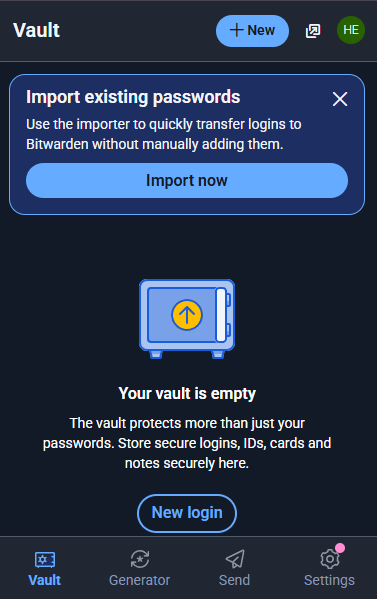
Install the Password Manager extension (Google Chrome)
How to Install and Set Up the Bitwarden Chrome Extension
Follow the steps below to install the Bitwarden password manager extension and connect it to the Williamsville Wellness vault.
1. Open the Chrome Web Store page
Go to:
https://chromewebstore.google.com/detail/bitwarden-password-manage/nngceckbapebfimnlniiiahkandclblb
2. Add the extension to your browser
Click “Add to Chrome.”
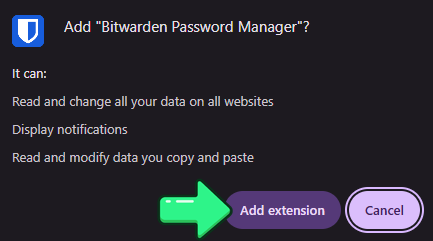
A popup window will appear.
Click “Add extension.”
3. Open the Bitwarden extension
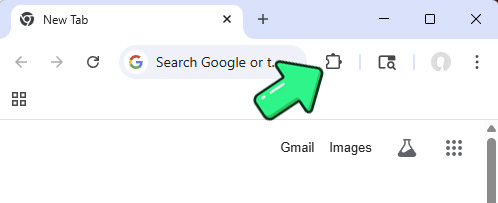
In your browser, click the Extensions icon (the puzzle-piece symbol).
Find Bitwarden in the list and click on it.
4. Enter your account email
Type your Email Address into the field.
Click “Remember email.”
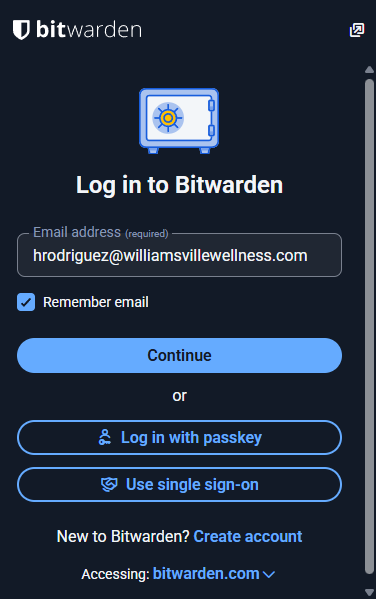
5. Switch to self-hosted environment
At the bottom of the window, find the Accessing option and click “bitwarden.com.”
Select “Self-hosted.”
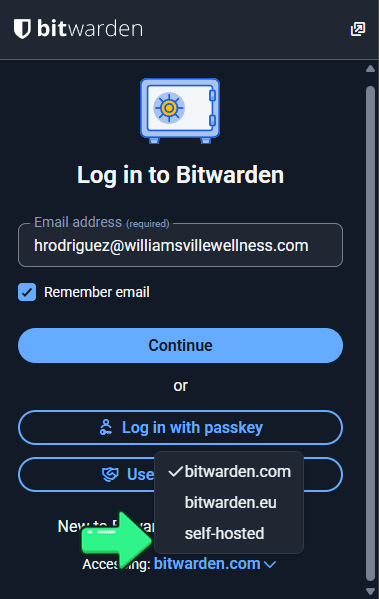
6. Enter the server URL
In the Self-hosted environment window, provide the following:
Server URL:
https://vault.williamsvillewellness.us
Then click “Save.”
7. Log in
You will return to the login window.
Click “Continue.”
Enter your Password.
8. Access the vault
After submitting your password, you will be logged into the vault through the Chrome extension.